How To Prepare and Print a Thermal Sensor with Cura
With Pithon’s customizability, there are two options on how to print:
Print original Monti provided thermal sensor
Customize the original thermal sensor to your liking before printing
These options will be outlined below.
Print original Monti provided thermal sensor
Step 1 Since the thermal sensor requires high resolution and precision, it is recommended to freshly reload filaments before printing. This can be done by:
Navigate to SYSTEM on the Ultimaker 3, then to the extruder of your choice, and Unload
Once the unload process is finished, lift the material clasp to release the filament. There may be a part of the filament which is tapered and not uniform as the rest. Use common scissors to remove this part before reloading.
Reload the filament by going to SYSTEM on the Ultimaker 3, then to the extruder of your choice, and Load.
When prompted to select filament, choose the filament which best describes the material used. In Monti’s designs, both materials are PLA based.
Allow for the filament to be loaded and wait for a constistent strand of filament to be extruded. Do not stop the process until the filament has reached at least 15 cm below the print head.
Perform these steps on both materials
Step 2
Navigate to files to find temp_4T_sensing_and_elem.gcode and temp_4T_sensing_and_elem.3mf.
Step 3
Communicate files to the printer. Ultimaker allows for communication over LAN or USB.
For LAN communication
Connect Ultimaker 3 to your network via WiFi or ethernet connection.
For WiFi, navigate to SYSTEM menu and select. Then choose NETWORK, followed by Run WiFi and follow on-screen instructions.
For Ethernet, connect an ethernet cable into the LAN port located on the rear of the printer.
Select the method of the above chosen methods in NEWORK on the printer.
On Ultimaker Cura, in the menu bar along the top, select Settings, Printers, then Manage Printers.
Select Connect via network in Cura.
Select the printer you hope to use and select Connect.
Load
temp_4T_sensing_and_elem.3mfas an Ultimaker project.Slice print by selecting Slice in a blue bar in the bottom right of the screen.

Select Print over network to print.
For USB communication
Find USB intended for use and insert into USB port on the user’s computer
Copy
temp_4T_sensing_and_elem.gcodeto the USBNavigate to USB, right-click on its name, and select eject.
 NOTICE: Do not remove USB before selecting eject as this may cause corruption of files.
Once it is indicated that the USB is safe to remove, remove it from the computer.
Insert USB into USB port on the front of the Ultimaker 3. Turn on the printer of you haven’t done so already.
Navigate to PRINT using the dial located on the right hand side of the printer. Press the dial in until it clicks to select the option.
Natigate to
temp_4T_sensing_and_elem.gcodeon the Ultimaker screen and select.
Step 4 Remove print from print bed. Your sensing element has now been printed and is ready to be prepared for calibration.
Customize the original thermal sensor
Users are free to create their own thermal sensor design, which is recommended to be created through Solidworks. This process is outlined in the manual at Tips for Optionally Using SolidWorks to Build Upon Sensor Designs. For changing the size of the Monti provided sensor, the following steps will outline this.
Step 1
Navigate files to find temp_4T_sensing_and_elem.3mf.
Step 2
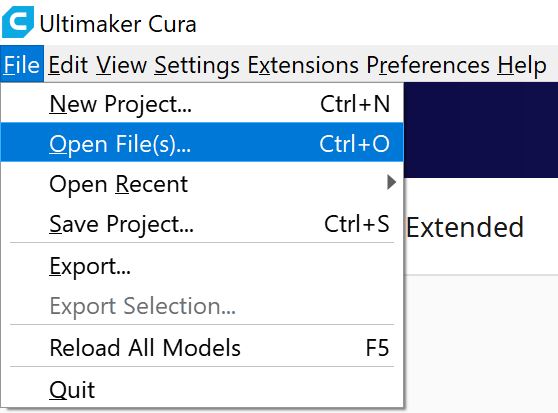
Open Ultimaker Cura and open the file from Step 1. This can be accomplished by going to File in the top menu, then Open File(s) and find the file.
Step 3 Now that the file is open, there should be two components. These components are the conductive sensing element and the non-conductive base. Select both components by holding Ctrl and selecting the components either from the Object list in the bottom left or by clicking on their models in the software.
Step 4
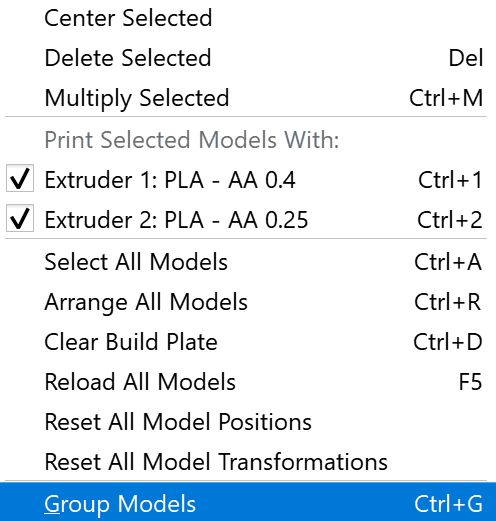
In order to increase the size of the thermal sensor as a whole in one step, these objects must be grouped. To group, once they’re selected right click. Navigate to Group Models and select to create a group.
Step 5
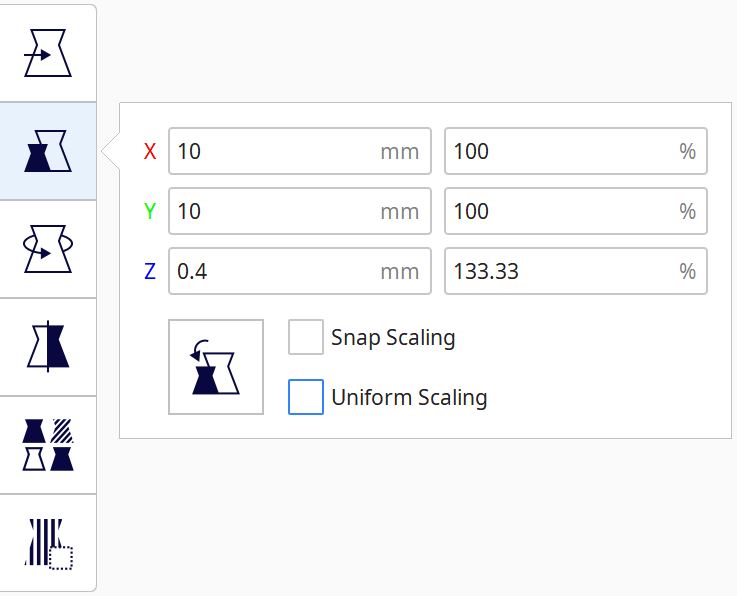
Change the size of the thermal sensor. This can be done by going to the Scale (S) option on the left hand menu. Deselect Uniform Scale if you want to change the height, width, or thickness seperately.
Step 6
Slice the design and save under a name of your choice as a .gcode file.
Step 7 Follow steps 1 through 4 from the previous section (Print original Monti provided thermal sensor) to complete the print, changing the file names there for the ones chosen by you.